Custom Google Ad Requests: Email Requests and Website Form Checks
What to do when a church asks for a custom Google ad, plus how to check custom ad requests that come through the website form.
Where churches request ads today: inside the Church Fuel software under Ad Request, or under Events if they have opted in. Video: Custom ad request walkthrough
1. A Church Emails Asking for a Custom Google Ad
- Identify the church and the request. Note the church name and who is asking.
- Find their sub-account. Search by business name first, open it in a new tab, and confirm it matches the church in the email before changing anything. If you cannot find it, try alternate spellings, the pastor's name, or the account email. Do not create a new account. Flag it internally.
- Check for users. In the sub-account, go to Settings > Users. If the person already has a user, skip to step 5.
- Add the person as a user. Enter their name and email (do not stall over a missing last name or phone) and send the invite. Confirm the success message, refresh, and make sure they appear in the list. The invite email asks them to create a password.
- Prepare the reply.
- Church is in the software: use the Saved Reply Custom Ad Request and paste in their ad request link.
- Church is not in the software: use the Saved Reply Google Ad Request - Not in Software (search "Not in Software") and paste in their ad request link.
- Make sure the saved reply is current and fits the situation.
- Send it, and do not submit the request for them. We usually fill out forms for churches, but here we want to give them a reason to log in. If nothing else is needed, close the conversation.
The reply should cover, in plain language (never say "sub-account" or GHL to a church): their access is ready and they will get an email to create a password; the link to submit their custom ad request; after logging in, start on the Setup tab; and how to reach us if anything looks off.
Troubleshooting:
- User does not appear after inviting: refresh once. If still missing, note it on the ticket and follow up internally. Do not re-invite repeatedly.
- Invite email not received: ask them to check spam and confirm the address. If that fails, find the church in Labs and send a magic link (they must already be a user on the account).
2. Check a Website Form Custom Ad Request (Gravity Forms)
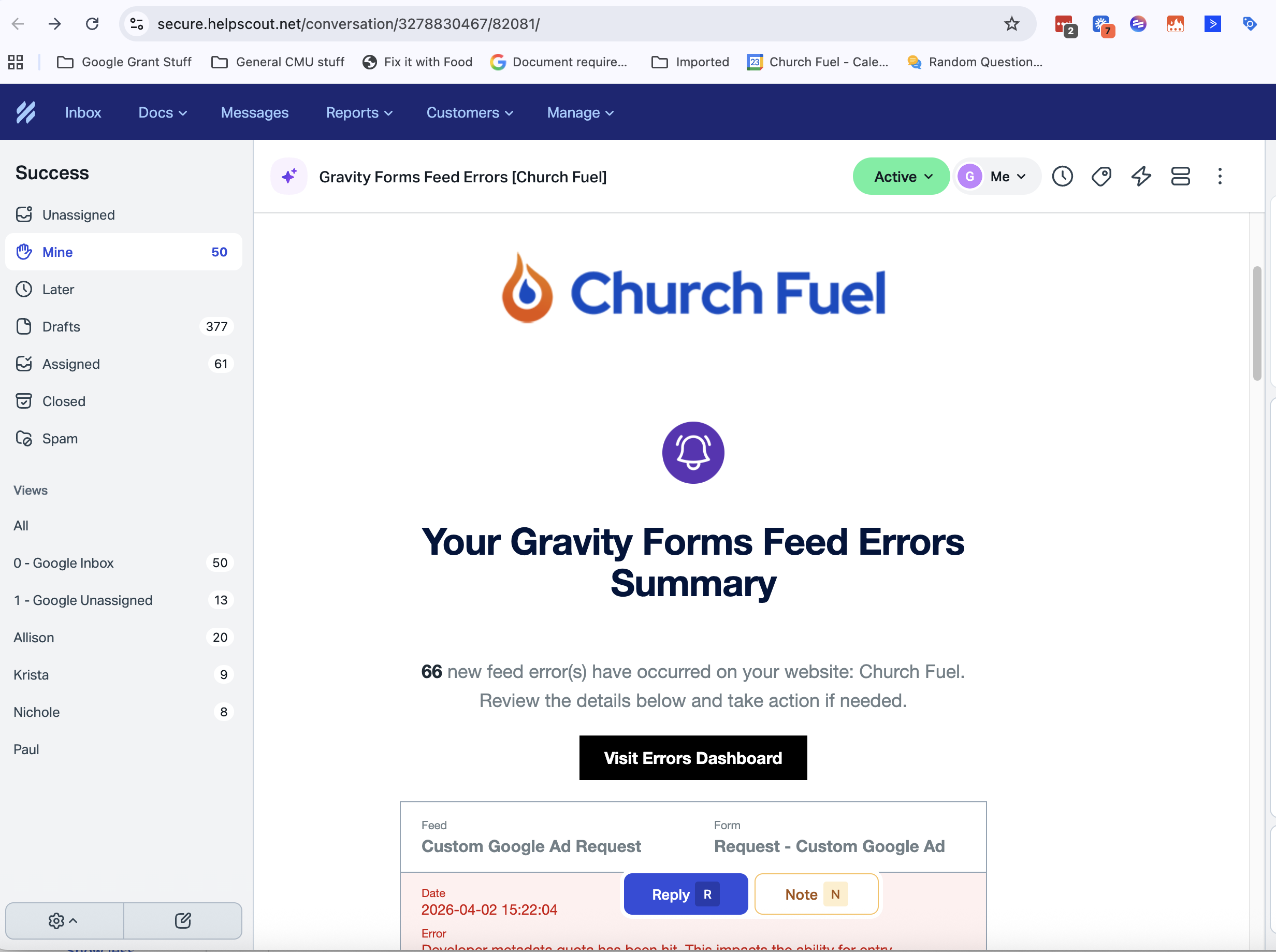
Some requests come through the Request - Custom Google Ad form on churchfuel.com. Use this to find a submission or confirm a "feed error" notification did not lose the entry.
Videos: Finding a form's spreadsheet · Checking feed errors
- Get the Entry ID from the notification email or the form backend.
- Log in to churchfuel.com (administrator access required) and click Forms (widen your browser if you do not see it).
- Search for the form (for example, "Custom"), open it, and confirm it is the right one. Search its entries for the Entry ID to confirm the submission was captured.
- In the form, go to Settings > Google Sheets and open the connected sheet (or use the Custom Google Ad Request sheet directly).
- Search the sheet for the Entry ID to confirm the data was written correctly.
If the entry is in both the form backend and the sheet, the request came through. Feed error notifications alone have not meant lost requests so far.